


 Valheim
Valheim is much more fun with friends! Since version 1.0, the game allows you to play with your friends, regardless of their platform: PC, Xbox, PlayStation 5, and even Nintendo Switch 2 are supported. With crossplay enabled, everyone can join the same server and go die together far too far from home.
In this guide, we explain how to enable crossplay on your nitroserv server and join it from Valheim.
I'm renting my Valheim server and joining my friends!
Quick Answer
To join your Valheim server:
- verify that Crossplay is enabled on your server if you want to play across different platforms
(information box in the top right of your Manager home); - start your server from the nitroserv Manager ;
- get its IP address and port displayed in the Manager ;
- launch Valheim and select your character ;
- click on Join Game…
- … then on Add Server ;
- enter your server address in the form
IP:PORT(example 127.0.0.1:1234); - select it from your list and connect ;
- enter the server password if Valheim asks for it ;
- Play and enjoy!
Make sure to enter both the IP address AND the port, separated by
:.
Step 1: Enable crossplay on your server
If players are using different platforms, start by verifying that Crossplay is enabled on your Valheim server. To check (and enable it if needed), go to your nitroserv Manager dashboard. In the top right, you'll find the Information box, and the Crossplay option:
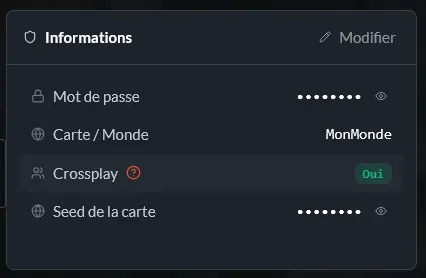
Crossplay is particularly necessary to play together between Steam, Microsoft Store, Xbox One and Xbox Series X|S, PlayStation 5, or Nintendo Switch 2. With crossplay, a single dedicated server can host players from all compatible platforms!
If your entire group plays only on Steam, the Steam backend will work very well. For a server intended to host other platforms, Crossplay is mandatory!
Step 2: Start your server
From your nitroserv Manager, start your server in the top left. Wait for it to show as Online before trying to join it:
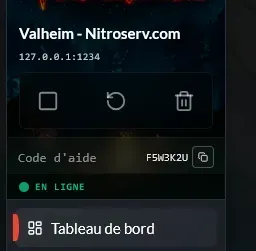
The server connection address is displayed directly below, in the form IP:PORT, for example 127.0.0.1:1234
Keep this IP address handy: it's what we'll use in Valheim.
Step 3: Open Valheim's connection menu
Launch Valheim, then:
- click on Start Game ;
- select or create your character ;
- open the Join Game tab ;
- click on Add Server.
The principle is the same regardless of platform: you add your server, then find it in your list for future connections!
Step 4: Add your server
In Add Server, enter the address displayed in your nitroserv Manager.
It must contain IP:PORT, for example 127.0.0.1:1234
Be careful not to enter only the IP address: the port after the colon is part of the connection address.
Confirm the addition: your server now appears in your server list 🎉
Step 5: Connect
Select your server from the list, then join it. If your server is protected by a password, Valheim will ask for it when connecting.
And there you go: you can now join your world!
How to join a Valheim server on Xbox?
On Xbox One or Xbox Series X|S, the principle is the same: launch Valheim, select your character, open Join Game, and select Add Server. Enter the IP:PORT address of your server, add it, then connect!
The server must have Crossplay enabled to allow connection from Xbox.
How to join a Valheim server on PS5?
Since Valheim 1.0, PlayStation 5 is also part of the platforms compatible with crossplay. You can therefore join the same server as PC or Xbox players by going through Join Game and adding your server. Crossplay must also be enabled on the server side!
How to join a Valheim server on Nintendo Switch 2?
Valheim is also available on Nintendo Switch 2 with crossplay: you can play on the same server as PC, Xbox, or PS5 players.
Note: Valheim is available on Nintendo Switch 2, not on the original Nintendo Switch.
I play on PC: do I need to enable crossplay?
Not necessarily: if all players use the Steam version of Valheim, a server using the Steam backend will work perfectly without Crossplay.
Crossplay is also compatible with Steam players, so enabling it still seems like the simplest choice for a server intended to host a diverse group!
Can you join a server with a Join Code?
Yes, Valheim can also generate a Join Code when a server uses the Crossplay backend. The player who has the code can open Join Game → Add Server and use this code to find the server.
For a nitroserv server, the IP:PORT address displayed in the Manager remains a simple method to share with your players!
My server doesn't appear
Don't panic: a server doesn't necessarily need to appear immediately in the public list to be joinable.
Try adding it directly with its IP:PORT address.
Also verify that your server is Online, that you're using the correct port, and that Crossplay is enabled if you're playing from a console or platform other than Steam. Also check that your game is up to date, and that your server is using a version compatible with your game!
I can't join from Xbox, PS5, or Switch 2
First, verify that Crossplay is enabled on the server. On Xbox, some parental control settings may also prevent the use of crossplay features. Finally, after modifying Crossplay, restart the server before attempting to connect again!
What about mods with crossplay?
That's where it gets a bit less magical: Valheim mods are not automatically distributed to players joining your server, and some must be installed client-side to work. The possibilities therefore depend on the mod and the platform used by each player.
If you want to modify your server, we've prepared a dedicated guide:
Install mods on a Valheim server with BepInEx
For a group made up of PC and console players, always verify the mod's compatibility with your installation before adding it!
__
Need help?
If your Valheim server doesn't appear, if you can't join it from your console, or if Crossplay is causing you problems, we're available on our Discord or via our Twitter account!
You can also contact us directly from your nitroserv Manager.


