


 Valheim
Time required: 5 minutes.
At first glance, Valheim is an 'early access' game produced by Iron Gate that has already sold over 6 million copies. The game is already experiencing a remarkable start; however, being an early access game, players may sometimes encounter bugs that notably affect their computer's performance on Valheim with observed FPS (frames per second) drops.

Nevertheless, Nitroserv will show you how to improve your computer's performance on Valheim with some fairly simple tips to apply.
1. Improve Valheim's performance using Vulkan
For these reasons, and since February 25, Valheim officially supports Vulkan to allow players to improve their computer's performance on Valheim.
In short, Vulkan is a modern coding architecture designed to operate more simply than its predecessors (older APIs).
Thus, for most players, using Vulkan will improve your computer's performance on Valheim. Most players have gone from 24 FPS to over 30, just with this adjustment. Other players have even reported seeing their FPS double, going from 30 to 60.
To download the Vulkan drivers, click here.
Vulkan will allow both better graphics and increased FPS.
Once the Vulkan drivers are installed, go to Steam and navigate to your game library. Right-click on Valheim and click on 'Properties'.
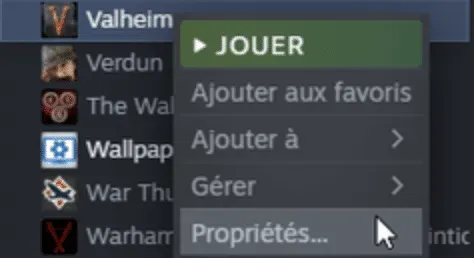
In the 'General' tab, choose 'Launch Options'. Once in the text area, type '-force-vulkan' to force the activation of the Vulkan graphics API every time you launch Valheim.
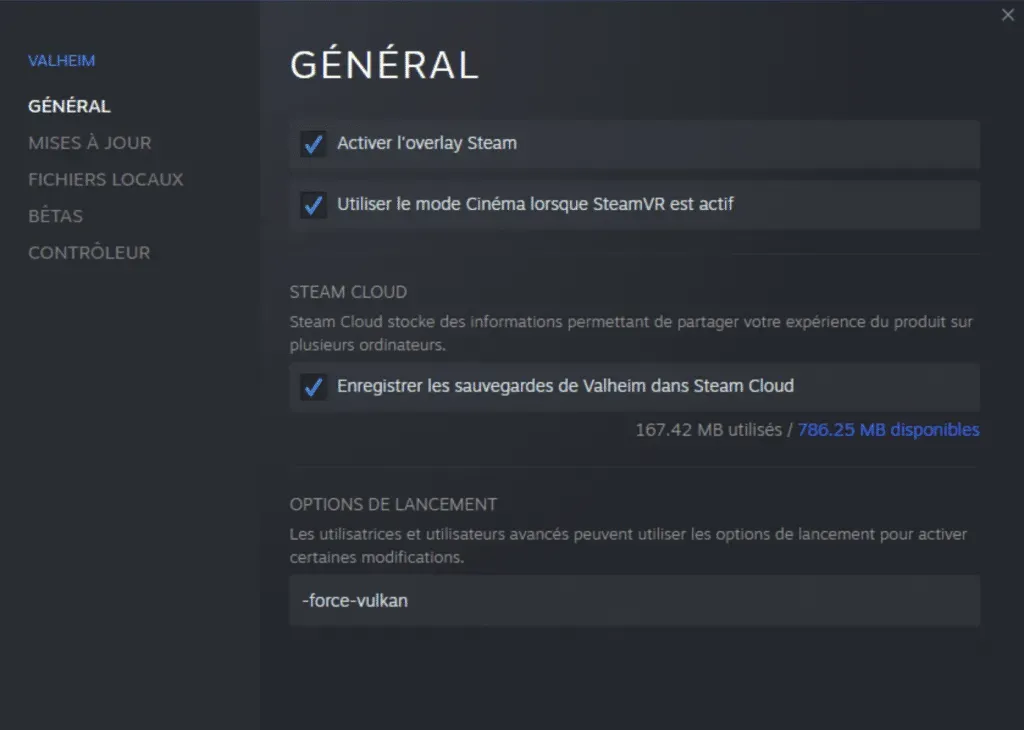
Unfortunately, Steam will not remember your selection for future launches, so go to the options to check the option to launch Valheim using Vulkan every time.
2. Optimize performance through Windows settings
Many players in the Valheim community have reported that using Vulkan did not improve in-game performance. Worse, some players complain that using Vulkan makes Valheim even more unstable in-game.
Fortunately, you can also improve your computer's performance on Valheim by adjusting and especially optimizing it through Windows settings.
Thanks to the latest updates, Microsoft has added new improvements within Windows to allow players to address FPS issues.
To find out if your computer can use the GPU scheduling option, press the 'Start' button or the 'Windows' key to open the 'Start' menu.
Search in the 'Graphics Settings' bar.
Enable the 'Hardware-accelerated GPU scheduling' option if it is present.
3. Optimize graphics settings via Valheim's configuration files
You can also improve your computer's performance on Valheim using certain graphics settings that can be modified via Valheim's configuration files located in the game's installation directory.
However, if you are not comfortable with this type of manipulation, feel free to skip this point.
First, make sure Valheim is closed.
Then, open Steam, navigate to your game library to find Valheim. Right-click on Valheim and click on 'Properties'.
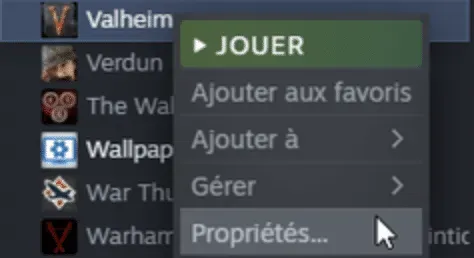
Then click on the 'Local Files' section and go to 'Browse'.
In the window that opens, open the 'valheim_Data' folder.
Right-click on the 'boot.config' file and select 'Open with...' to open all possibilities.
You can normally select 'Notepad'. Once the 'boot.config' file is open in 'Notepad', make the following changes:
Add two new lines to the file by pressing 'Enter' twice at the top of the document.
Copy the command 'gfx-enable-jobs=1' and paste it on the first line.
On the second line, copy 'gfx-enable-native-gfx-jobs=1' and paste it on the second line.
You can save these changes with 'Ctrl+S'.
Finally, return to Steam and launch Valheim.
Check out our Valheim offer & join us on our discord!


