


 Manager
You're sending a map, a mods folder, or a large backup to your nitroserv server, but FileZilla is crawling along or cutting out mid-transfer?
Two settings can help: disable the timeout and increase the number of simultaneous transfers.
Wait, first I'll get a server!
Quick answer
To improve your SFTP transfers in FileZilla:
- open Edit > Settings ;
- in Connection, set the timeout to
0; - in Transfers, set the maximum number of simultaneous transfers to
10; - click OK.
These settings are only made in FileZilla, on your computer. You don't need to change anything on the nitroserv server side.
Disable the timeout
The timeout can cut a connection if FileZilla thinks it's not responding fast enough.
To disable it:
- open FileZilla ;
- click on Edit ;
- click on Settings ;
- open the Connection page ;
- find the Timeout field ;
- set the value to
0 - click OK.
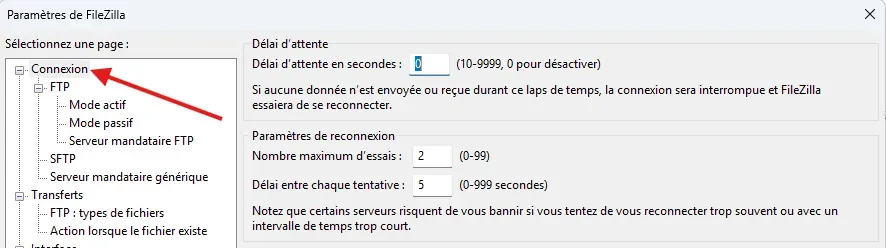
With a value of 0, FileZilla will no longer automatically cut the connection due to timeout.
This is especially useful for large transfers, or uploads that take a long time!
Increase simultaneous transfers
FileZilla can send multiple files at the same time.
To increase this limit:
- open Edit > Settings ;
- go to the Transfers page ;
- find the Maximum number of simultaneous transfers field ;
- set the value to
10 - click OK.
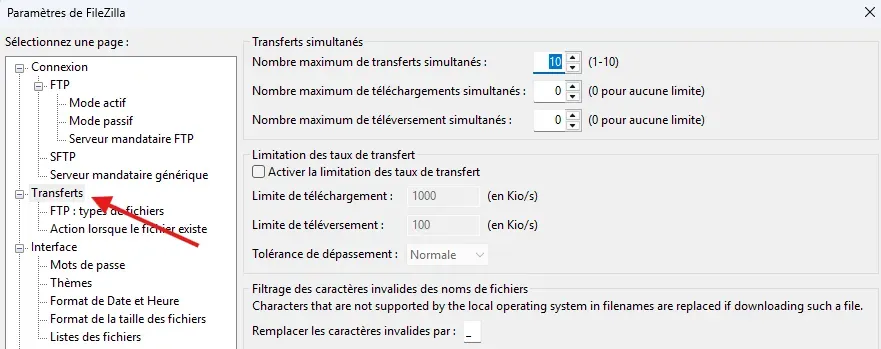
10 is the maximum really supported from the FileZilla interface.
If you set a higher value, FileZilla will automatically bring it back to 10.
When does this really help?
Increasing simultaneous transfers is especially useful when you're sending lots of small files, for example:
- a map ;
- a mods folder ;
- a modpack ;
- a backup with many files ;
- a complete server folder.
For a single large file, the gain can be much more limited. In that case, it's mainly your connection, your Wi-Fi, or the stability of the transfer that will make the difference.
If the transfer is still slow
If FileZilla is still slow after these settings, also check:
- that you're properly connected via SFTP ;
- that your Internet connection is stable ;
- that you're not on weak Wi-Fi ;
- that you're not already sending something else in parallel ;
- that FileZilla isn't showing errors in the queue.
If a transfer fails, you can usually restart it from FileZilla's queue.
__
Need help?
If your SFTP transfers are still slow, cutting out during upload, or FileZilla is showing an error, we're available on our Discord or via our Twitter account!
You can also contact us directly via ticket from your manager.

