


 Minecraft
Quick Answer
If your Minecraft server is in online-mode=false, accounts are no longer verified with Mojang / Microsoft: we say it's in offline-mode.
This allows unofficial versions to join your server, but it also means a player can try to use someone else's nickname.
To secure a server in offline mode, don't rely solely on the whitelist: instead install an authentication plugin or mod from the nitroserv Manager, such as Auth, AuthMeReloaded, EasyAuth or EasyLogin, depending on the type of server you're using!
Why secure a server in online-mode=false?
When online mode is enabled, Minecraft verifies player identity with Mojang / Microsoft before letting them join the server.
When it's disabled, this verification no longer exists: the server can no longer know for certain whether the player using a nickname is its real owner.
On a server, this means that someone who knows one of the players' nicknames can log in with it: imagine if they get an admin's, moderator's, or a player with important permissions' nickname 🥶
The atmosphere can quickly go from "chill evening" to "support ticket with cold sweat".
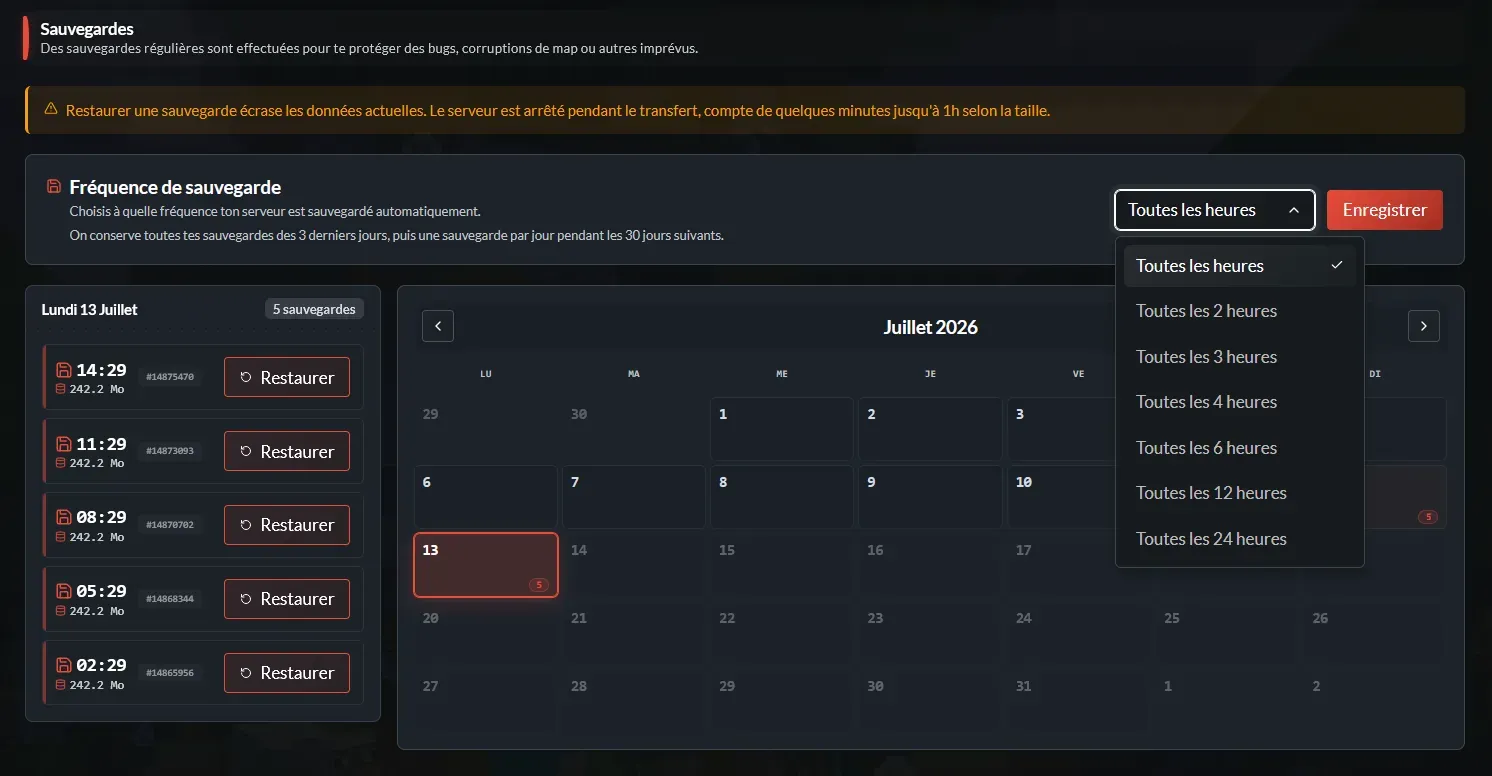
At nitroserv, we've still planned the parachute: your server can be automatically backed up every 1h, 2h, 3h, 4h, 6h, 12h or 24h, depending on the setting chosen by the admin. If a troll comes and griefs the entire server, you can revert to a recent backup in 2 clicks, instead of watching your world burn in silence.
Why isn't the whitelist enough in offline mode?
In online-mode=false, the whitelist can still filter nicknames, but it doesn't verify the real identity of players.
In other words, it can say a nickname is allowed, but it will never be able to tell you if the person behind that nickname is the right one.
Another important point: player UUIDs can change between online mode and offline mode.
And as a result:
- a player can be recognized as a new account ;
- their inventory or data may no longer match ;
- their permissions or rank may no longer target the correct profile ;
- a whitelist may become insufficient to protect the server ;
- a player can try to use someone else's nickname.
In short: in offline mode, the whitelist alone should not be considered as real security. And you should also avoid switching from online to offline when your server is already running :D
The solution: add in-game authentication
To protect a server that accepts unofficial versions, the simplest way is to add an authentication system.
The principle is simple:
- a player joins the server ;
- they choose a password with a command like
/register; - on subsequent connections, they must log in with
/login; - as long as they're not logged in, they can't play normally.
This prevents a player from simply taking someone else's nickname and directly accessing their permissions or progression.
Which authentication plugin, datapack or mod to use?
The right choice mainly depends on the type of Minecraft server you're using.
Paper, Spigot or Purpur Server
For a Paper, Bukkit or Spigot server, you can use an authentication plugin:
- AuthMeReloaded: the most well-known choice for protecting a server in offline mode ;
It's the plugin most often recommended to prevent nickname spoofing on a server that accepts unauthenticated connections.
Vanilla or modded server
For a Vanilla, Fabric, Forge, NeoForge or Quilt server, you can look for an authentication mod or datapack:
- Auth, our favorite because it's broad in terms of compatibility: it's available as a datapack for vanilla Minecraft, and as a mod for all modloaders ;
- EasyAuth, especially for Fabric ;
- EasyLogin, compatible with Forge, Fabric and NeoForge.
In any case, make sure the content you choose matches your Minecraft version and your server type.
Installing an authentication plugin, mod or datapack
The simplest way is to go directly through the nitroserv Manager.
From your nitroserv Manager:
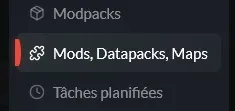
- open the Mods, Datapacks, Maps tab (or Plugins, Datapacks, Maps depending on your Minecraft version) ;
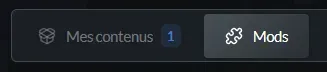
- click on the "Mods" button ;
- choose the right catalog if needed, for example Modrinth ;
- the Manager will take care of pre-selecting your Minecraft version, and your modloader if your server is modded ;
- search for the plugin, mod or datapack you want to install (Auth for example);
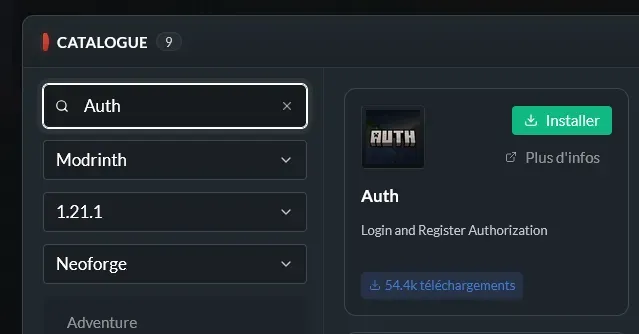
- click on Install ;
- restart your server.
The Manager takes care of placing the content in the right place depending on its type: plugin, mod or datapack.
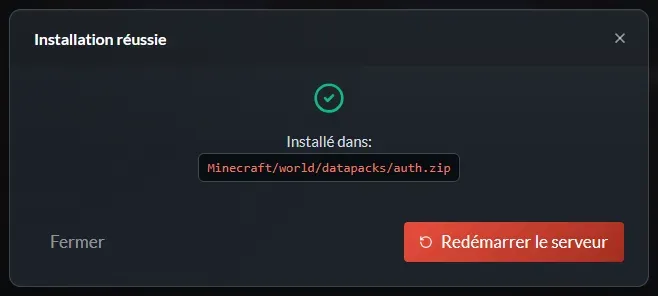
Example of successful installation on vanilla Minecraft server (without mods or plugins)
This is particularly useful to avoid common mistakes, such as sending a datapack to the mods folder or installing a file incompatible with your Minecraft version.
Warning: some authentication mods are server-side only, others may require client-side installation. Always check the mod author's instructions.
Testing that authentication works
After installation, join your server with a player account.
Depending on the plugin or mod installed, you should see a password creation request.
The most common commands look like this:
/register password password
Then on subsequent connections:
/login password
As long as the player is not logged in, they should not be able to play normally.
Depending on the plugin configuration, they may be blocked from moving, prevented from using inventory, placing blocks or executing certain commands.
Some important precautions
Before opening a server in online-mode=false, check these points:
- don't grant important permissions to unprotected nicknames ;
- install authentication BEFORE opening the server to the public ;
- test the connection with a player account before inviting everyone ;
- avoid switching an already advanced server from
online-mode=truetoonline-mode=falsewithout checking player data ; - keep in mind that automatic backups run regularly on nitroserv.
We'll say it one last time, but if you change the online mode on an already used server, some players may be recognized differently because of the UUID change (and thus lose everything until you switch back to online-mode=true)
__
Need help?
If you can't install your authentication plugin or your server doesn't restart correctly after the change, we're available on our Discord or via our Twitter account!
You can also contact us directly via ticket from your manager.


