


 Valheim
Valheim mods allow you to add content, modify certain mechanics, or adapt the experience to your group. On servers, they most often go through BepInEx, a mod loader that allows Valheim to load installed files.
In this guide, we explain how to enable BepInEx on your nitroserv server, install your mods via SFTP, then verify that they are properly loaded.
Quick Answer
To install mods on your Valheim server:
- switch your server to Valheim - BepInEx version from the nitroserv Manager;
- start the server for the first time to generate folders;
- stop the server;
- download your mods from Thunderstore;
- check their dependencies;
- send the files to
Valheim-BepInEx/BepInEx/plugins/with FileZilla; - restart the server;
- check the logs to confirm that the mods are properly loaded.
Warning: some mods must also be installed on players' PCs. Always check the mod description before adding it to the server.
Prerequisites
Before you start, you will need:
- access to the nitroserv Manager;
- SFTP access to your server;
- SFTP software like FileZilla;
- Valheim mods you want to install.
If you don't know how to use FileZilla yet, we've prepared a dedicated guide:
Step 1: Enable BepInEx on your Valheim server
To load mods, your Valheim server must use BepInEx.
From the nitroserv Manager:
open your Valheim server;
locate the version box in the top right of your dashboard;
click Modify;
select Valheim, then BepInEx;
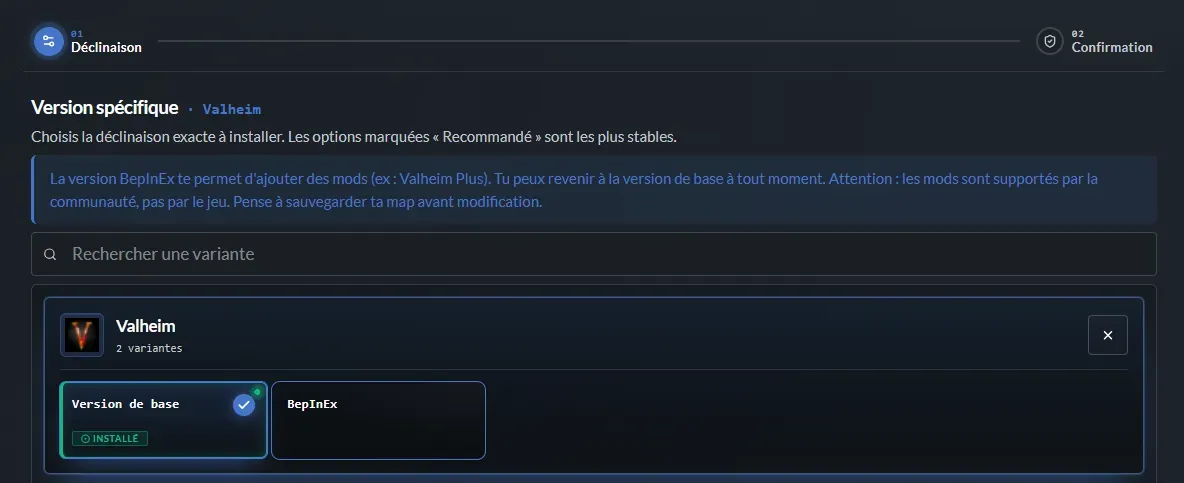
save the change;
start your server for the first time;
wait for it to be shown as online;
stop it again.
This first startup is important: it allows the server to automatically create the necessary folders, including
BepInExandplugins.
Without this, you risk looking for a folder that doesn't exist yet, which is rarely the most fun activity of the evening.
Step 2: Download Valheim mods
The most popular site for downloading Valheim mods is Thunderstore Valheim.
On the page of the mod you want to install:
click Manual Download;

download the mod archive;
extract the
.zipfile on your computer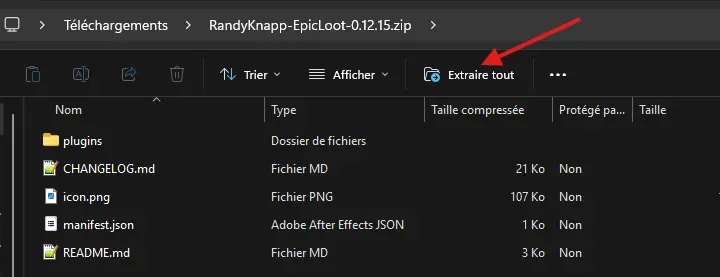
check the files obtained.
Depending on the mod, you may find:
- a
.dllfile; - a complete folder;
- configuration files;
- additional files needed for the mod.
Step 3: Check mod dependencies
Before sending your mod to the server, always check the Dependencies section on Thunderstore.
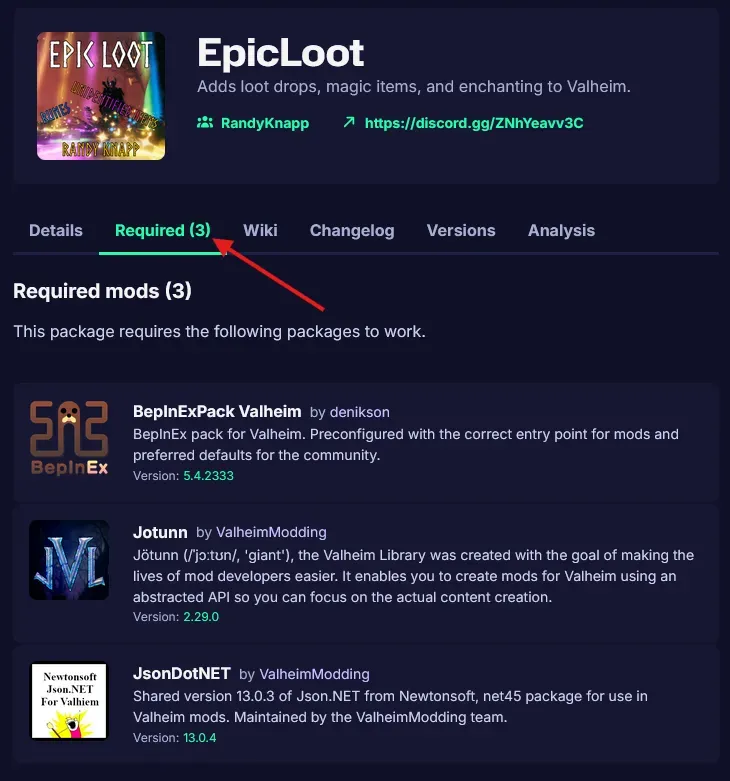
Some mods need other mods or libraries to work properly, which we call dependencies.
You must also download and install them: if a dependency is missing, the mod may not load, display errors in the logs, or prevent the server from starting.
Simple tip: install the dependencies first, then the main mod.
Step 4: Send mods to the server
Before modifying files, stop your Valheim server from the nitroserv Manager.
Then:
- open FileZilla;
- connect to your server via SFTP;
- navigate to the
Valheim-BepInEx/BepInEx/plugins/folder - send the mod files to this folder.
Where to place mod files?
It depends on what the mod contains after extraction.
If the mod contains only a .dll file
You can send the .dll file directly to the plugins folder.
Example: Valheim-BepInEx/BepInEx/plugins/MyMod.dll
If the mod contains a complete folder
If the mod contains a folder with multiple files, keep the complete folder.
Example: Valheim-BepInEx/BepInEx/plugins/ModName/MyMod.dll
This is often necessary when the mod also contains assets, configuration files, or other elements needed for it to work.
Step 5: Restart the server
Once the mods are sent, go back to the nitroserv Manager and start your Valheim server.
Then verify via your console that BepInEx is properly loading the installed plugins.
If everything goes well, you should see lines indicating that BepInEx detects and loads the .dll files.
Do players need to install the same mods?
It depends on the mod. Some mods are server-side only, while others must be installed only on the player's side. Some must even be installed on both sides: server and client.
Generally:
- a mod that adds content, objects, or important mechanics often needs to be installed by all players;
- a purely server-side mod can work without client-side installation;
- a purely visual or interface mod may only concern players.
The safest approach is to check the mod description on Thunderstore. Authors often indicate whether the mod is server-side, client-side, or required on both sides.
If players don't have the right mods, or not the same versions, they may be refused at connection or encounter in-game errors.
Best practices before adding mods
Before installing or updating mods on your Valheim server:
- always stop the server before modifying files;
- avoid adding too many mods at once;
- check dependencies;
- verify compatibility with your Valheim version;
- keep the same versions on server and players when necessary;
- read the logs after restart.
nitroserv automatic backups can be configured every 1 h, 3 h, 6 h, or 12 h depending on the setting chosen by the admin. Before a major mod modification, simply avoid doing this right after an important session without letting the server save properly.
Why don't spawn, debugmode, or god work on my Valheim server?
On a vanilla dedicated Valheim server, certain cheat commands don't work, even if you're an admin of the server.
This is notably the case for commands like spawn, debugmode, god, fly, or nocost.
These commands are intended for solo or games hosted directly by a player, but they are not available by default on a vanilla dedicated server.
If you want to use this type of command on a dedicated server, you must use an appropriate mod, like Server Devcommands / Dedicated Server Devcommands, to be installed on the server side and client side depending on the mod's requirements.
This type of mod adds devcommands management on dedicated servers.
Warning: this is not necessary to install classic mods.
It's only useful if your goal is to use cheat or debug commands on your server.
Common issues
The mod doesn't work
Verify that:
- the server is using the Valheim - BepInEx version;
- the
.dllfile is inValheim-BepInEx/BepInEx/plugins/; - the server has been restarted;
- the mod's dependencies are installed;
- the mod is compatible with your current Valheim version.
Players can't join
Verify that:
- players are using the same mods as the server if the mod requires it;
- mod versions match;
- dependencies are also installed on the player side if necessary;
- the mod is not only intended for the client or only for the server.
Server crashes on startup
A crash can come from:
- an incompatible mod;
- a missing dependency;
- a wrong mod version;
- a file placed in the wrong location;
- a recent Valheim update that temporarily breaks some mods.
In this case, open the server logs and identify the last mod loaded before the error. It's often the best clue.
The BepInEx folder doesn't exist
Verify that you have:
- selected Valheim - BepInEx in the nitroserv Manager;
- started the server for the first time;
- waited for it to be online;
- stopped the server before reconnecting via SFTP.
The folder is generated after the first startup with BepInEx.
Beware of Valheim updates
After an official Valheim update, some mods may not work immediately.
If your server crashes after an update:
- check if your mods have been updated on Thunderstore;
- update dependencies;
- temporarily remove the oldest mods;
- restart the server to test.
The cleanest approach is to reactivate mods progressively, especially if you have several. This allows you to quickly identify which one is causing the problem.
__
Need help?
If your Valheim server doesn't start after installing a mod, or if you don't know which files to send, we're available on our Discord or via our Twitter account!
You can also contact us directly via ticket from your nitroserv Manager.


