


 Minecraft
A Minecraft snapshot is a test version published by Mojang before an official update. It allows you to discover new features in advance, but it can also contain bugs, break certain worlds or make a save incompatible with an older version.
In this guide, we explain how to install a snapshot on your nitroserv server using Custom JAR mode.
Quick Answer
To install a Minecraft snapshot on your server:
- switch your server to Custom JAR mode from the nitroserv Manager ;
- select the correct Java version ;
- download the official server
.jarfile from the snapshot article on minecraft.net ; - rename the file to
myserver.jar; - send it via SFTP to the
/Minecraftfolder ; - start your server.
If the server doesn't start, first check that the Java version you selected matches the one required by the snapshot.
Before You Start
Snapshots are test versions. They're perfect for discovering Minecraft's new features in advance, but they're not designed to replace a stable version on an important server.
Before launching a snapshot, keep in mind that:
- certain bugs can block the server ;
- plugins, mods or datapacks may not be compatible ;
- a world opened in snapshot may no longer be compatible with an older version ;
- it's better to test on a new world or a copy of your current world.
At nitroserv, automatic backups can be configured every 1 h, 3 h, 6 h or 12 h depending on the setting chosen. But for a snapshot, the cleanest approach is to test on a separate world if you don't want to take any risks.
Step 1: Switch the server to Custom JAR
From the nitroserv Manager:
open your Minecraft server ;
locate the VERSION box, in the top right
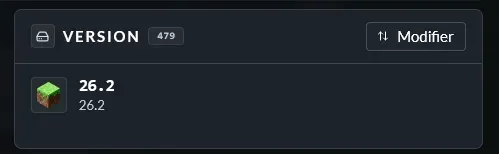
click on
Edit;select Custom JAR ;
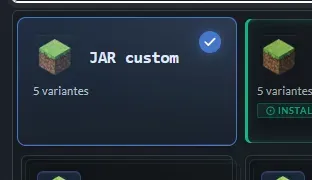
choose the Java version suitable for the snapshot ;
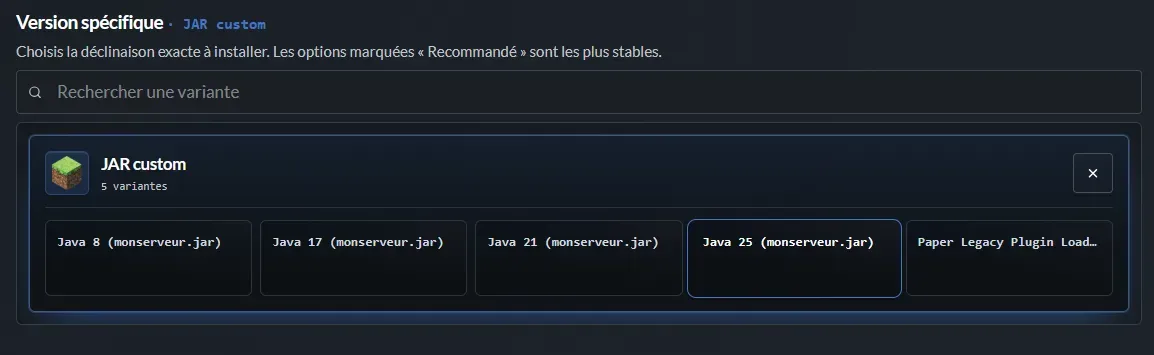
confirm the change.
Recent snapshots often require an up-to-date Java version. To avoid issues, always check the release notes published by Mojang to find out which Java version is required.
Step 2: Download the official server file
Go to the official snapshot article on minecraft.net.
At the bottom of the article, Mojang usually provides a download link for the server, often labeled as Cross-platform server jar, or Minecraft server jar
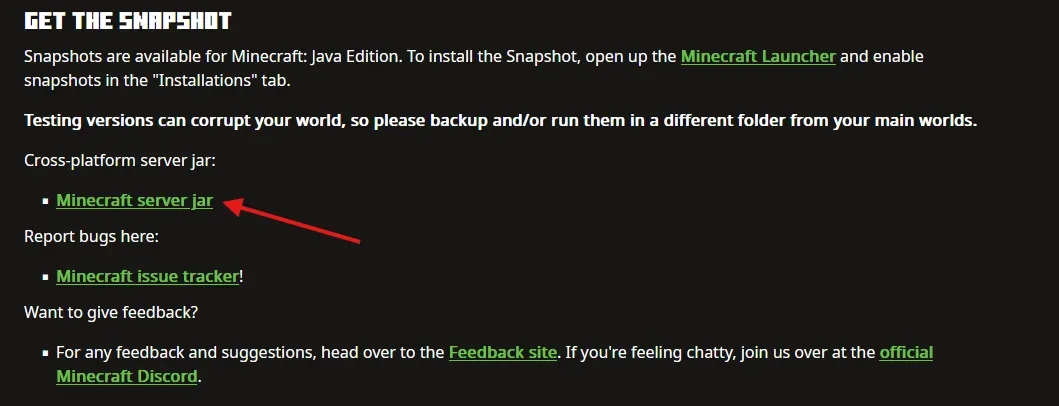
Download this file to your computer.
Once you have the file, rename it exactly to myserver.jar
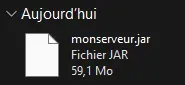
The name is important: this is the file your server will launch in Custom JAR mode.
Step 3: Send the file with FileZilla
Connect to your server via SFTP with FileZilla.
If you don't know how to use SFTP yet, we've prepared a dedicated guide:
Once connected, go to the /Minecraft folder, and drop your myserver.jar file directly into this folder.
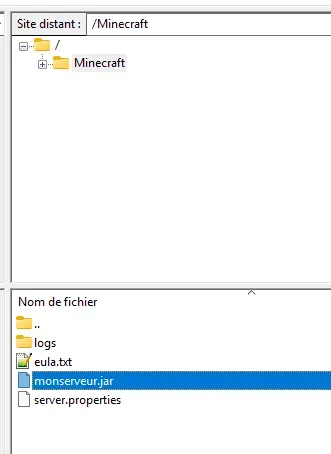
If an old myserver.jar file already exists, replace it with the new one.
Step 4: Start the server
Go back to your nitroserv Manager, then start your server.
If it starts correctly, your server is now running under the Minecraft snapshot you chose.
You can then connect with a game version compatible with this snapshot. Warning: players will also need to launch Minecraft in the same snapshot to join the server.
If the server doesn't start
If your server refuses to start after installing the snapshot, first check these points:
- the file has been renamed to
myserver.jar; - the file is in the
/Minecraftfolder ; - your server is in Custom JAR mode ;
- the Java version selected matches the one required by the snapshot ;
- you are not using an incompatible plugin, mod or datapack ;
- your Minecraft client is using the same snapshot as the server.
In most cases, the issue comes from an incorrect Java version or a .jar file with the wrong name.
__
Need help?
If your server doesn't start after installing the snapshot or you can't send the .jar file, we're available on our Discord or via our Twitter account !
You can also contact us directly from your nitroserv Manager.


