


 Palworld
[obsolete for 7.0]
Information:
Currently, this modification does not work for new options and may create issues with crossplay.
Sometimes, certain modifications to the PalWorldSettings.ini file do not work.
This guide will explain how to solve this problem.
For some updates, certain modifications require a file called WorldOption.sav
You can generate this file from this site: https://palworldoptions.com/
It's very easy to use, here's how the site works:
When you arrive on the site, there are 2 important elements:
- Import PalWorldSettings.ini
- Import WorldOption.sav
The easiest way is to import the PalWorldSettings.ini; to do this, you just need to copy and paste the settings that are on the manager here:
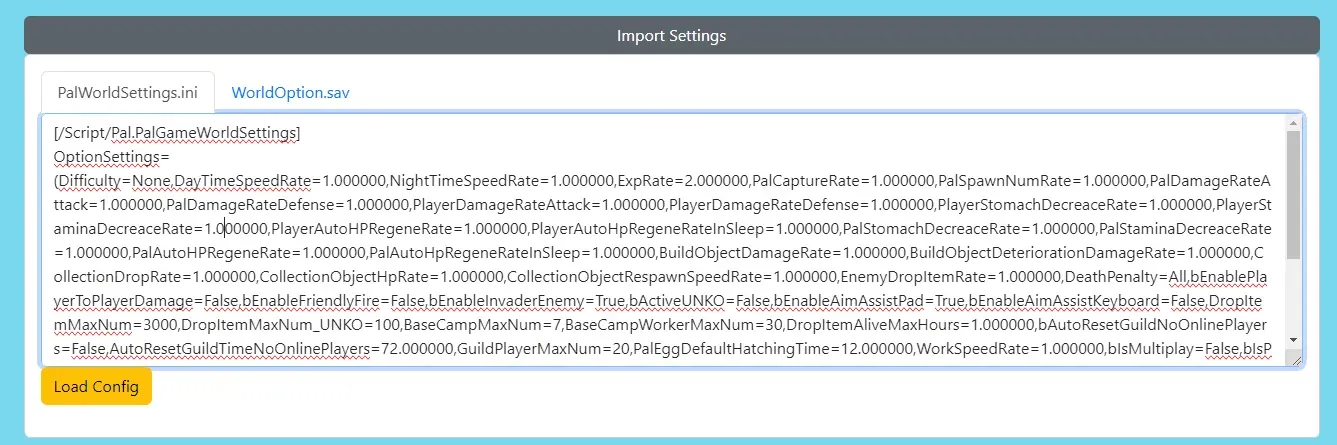
Then you click on "Load Config"
Once that's done, the rest of the site will change with the values from PalWorldSettings.ini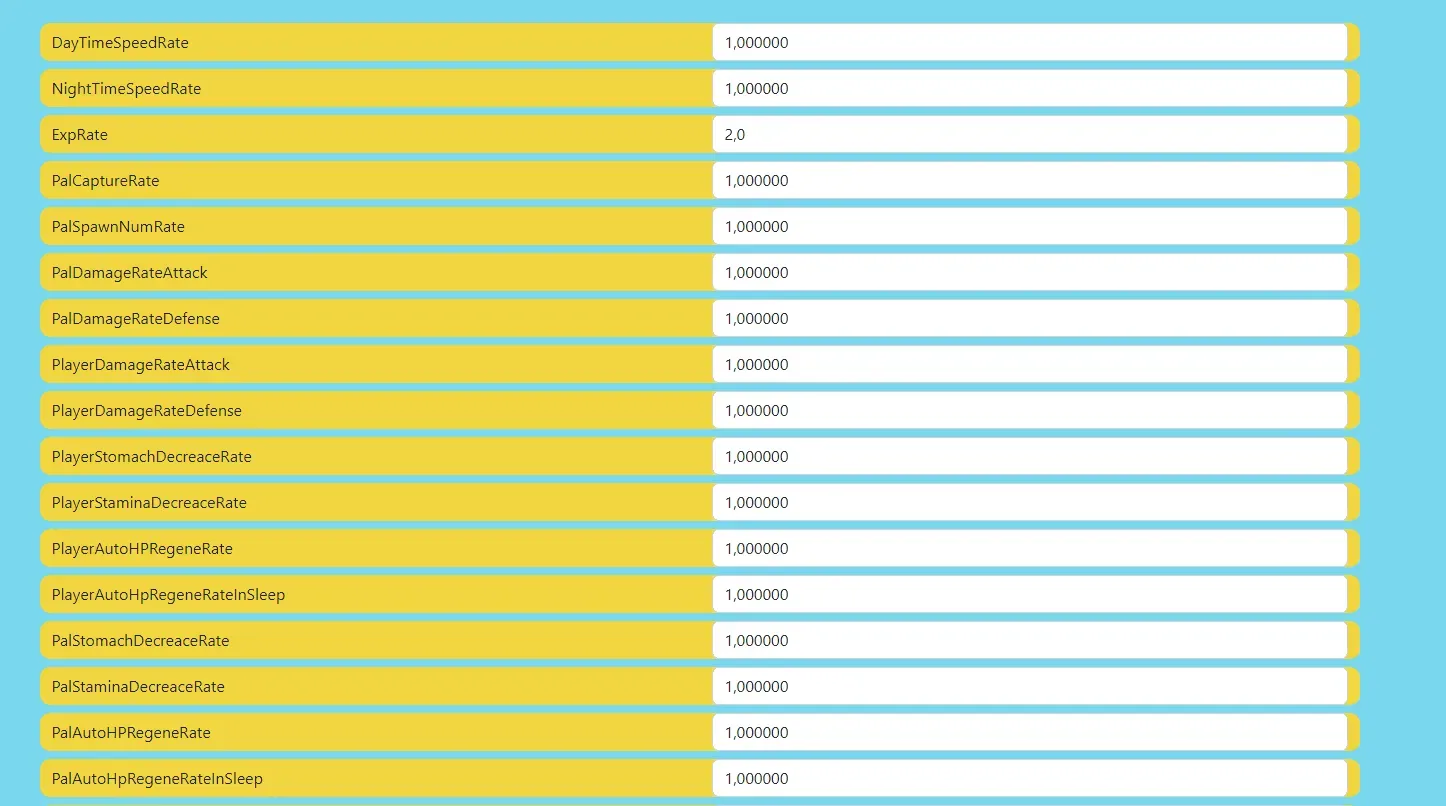
You can now modify whatever you want in the server configuration.
Once that's done, at the bottom of the page you have 2 choices:
- Generate WorldOption.sav
- Export PalworldSettings.ini
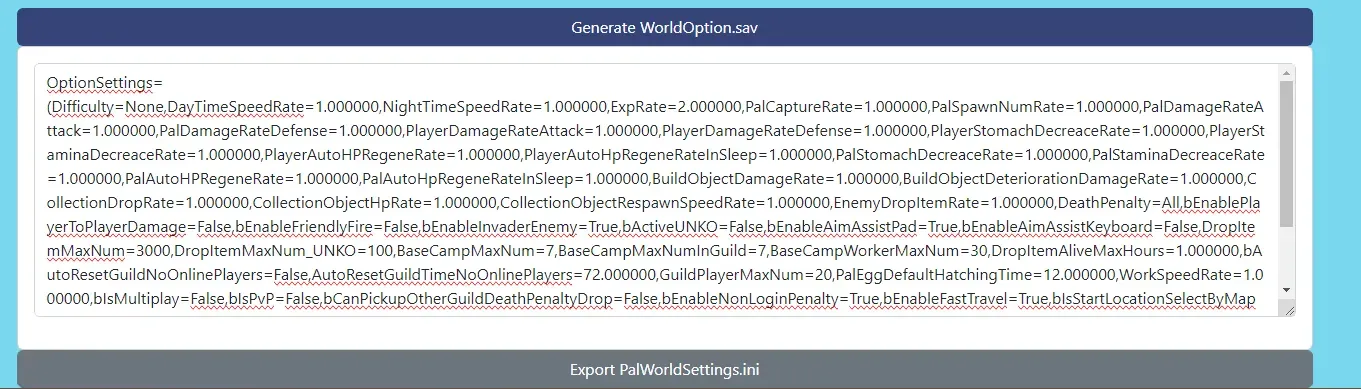
You need to click on both buttons.
The first will generate the WorldOption.sav file
The second will directly generate on the site, the new PalWorldSettings.ini that you can copy and paste on the manager.
The WorldOption.sav must be placed on the server via ftp
Once on the ftp you need to go here
/Palworld/Pal/Saved/SaveGames/xxxxxxxxxxxxxxxxxx/
The "x" are unique to each server
If the "WorldOption.sav" file already exists you need to delete it, then you can upload the file you just generated with the help of the site.
⚠️ The WorldOption and PalworldSettings files must contain the same information.
All that's left is to restart the server.
We remain available in case of problems, whether on Discord or via a support ticket.