

 Palworld
A Palworld guild can become blocked if its guild master no longer plays, if their account is inactive, or if their player file .sav has been deleted to fix a corrupted character.
Sometimes, deleting the player is the only viable option to debug it: we even made a full tutorial available here, following issues encountered by one of you!
In this case, the base, chests, and Palbox can remain linked to a Guild Master who is no longer really available or no longer properly recognized by the game. Result: guild members lose certain permissions, such as access to base management or the ability to build new Palboxes on the affected bases.
In this guide, we explain how to fix an orphaned guild with Palworld Save Tools, by linking the right players to the right guild and reassigning a valid guild master directly in Level.sav.
Quick Answer
To fix an orphaned or blocked Palworld guild:
- stop your Palworld server;
- retrieve the
Level.savfile from the affected world; - keep a copy of the original file intact;
- open
Level.savwith Palworld Save Tools; - select the player in question in
Search Players; - open
Search Guilds; - link the player to the correct guild with
Move Selected Player to Selected Guild; - reassign a valid Guild Master;
- save the file;
- send the modified
Level.savback to the server; - restart and verify in-game that chests and base are accessible.
Warning: this operation directly modifies your world save. Never work without a backup copy.
Why Can Base Access Break?
In Palworld, information related to guilds is not only stored in the player file.
Guild Master status, guild membership, and links to a base are stored in the main world file: Level.sav
This problem can occur in two common cases:
- the Guild Master was deleted, for example after deleting their player file
.sav; - the Guild Master no longer plays, and no other member has the necessary permissions to properly manage the base.
In both cases, the problem is the same: the guild depends on a leader who is no longer usable. You must therefore reassign a valid Guild Master in Level.sav.
Step 1: Retrieve and Protect Your Save
Before any modification, stop your Palworld server from the nitroserv Manager.
Then, connect to your server via SFTP with FileZilla and navigate to the saves folder.
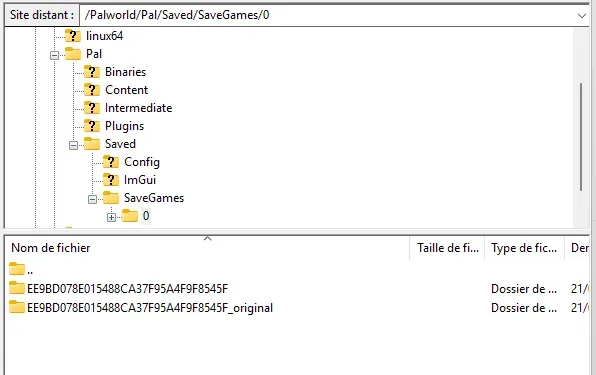
On your nitroserv server, the world folder is located here: /Palworld/Pal/Saved/SaveGames/0/
Inside, you will find your world folder, with a long identifier unique to your server.
It looks like this: /Palworld/Pal/Saved/SaveGames/0/<WORLD_ID>/
Download this entire folder to your computer by right-clicking, then clicking Download.
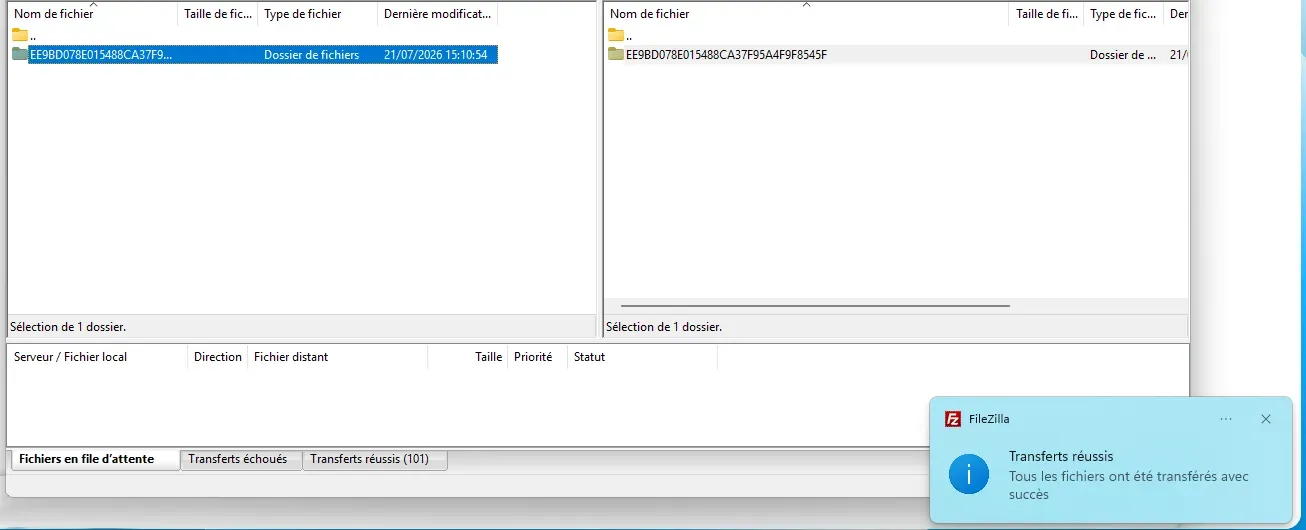
Once the folder is retrieved, rename the folder present on the server directly to keep it aside, for example: <WORLD_ID>_original

Do not delete this original folder until you have verified that everything works after the modifications. You can even leave it afterwards, it won't impact the server or your game.
This method avoids partial replacements: if PST deletes a player file locally, but the old file still remains on the server, Palworld can continue to take it into account. By renaming the original folder and then sending back a complete modified folder, you start fresh.
The <WORLD_ID> folder corresponds to your world identifier. It contains in particular:
Level.sav
LevelMeta.sav
Players/
Leave Filezilla open: we'll come back to it to reimport your save.
Step 2: Download Palworld Save Tools
You can retrieve Palworld Save Tools from its official GitHub repository or from Nexus Mods.
The GitHub repository is here:
https://github.com/deafdudecomputers/PalworldSaveTools/releases
Choose the version suitable for your system:
- Windows:
.7zfile; - Linux: Linux binary;
- macOS:
.dmgfile.
On Windows, if the tool displays an error related to VCRUNTIME140.dll, install the Microsoft Visual C++ Redistributable.
Step 3: Open the Save in PST
Launch Palworld Save Tools, then load your save.
In the save folder you retrieved earlier, select the file:
Level.sav
You can usually load it:
- via the Load Save menu;
- or by dragging and dropping
Level.savdirectly into the PST window.
Step 4: Find the Player to Make Guild Master
Once the save is loaded, open the player search tab, usually called Search Players or Players depending on the tool version.
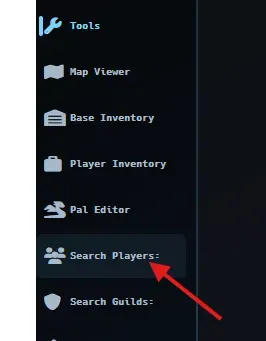
The list displays the players present in the save. If there are many of you, you will have all the necessary information to find the player you're interested in, such as the name (obviously) but also the level, UID, current guild, number of Pals, or last login.
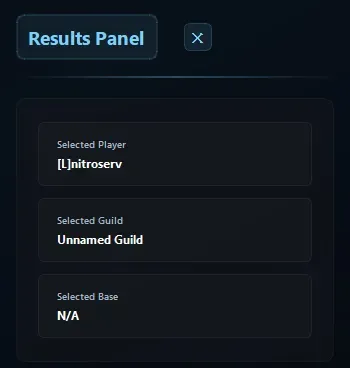
Click once on the player to link: their username will appear to the right of the tool, in the "Results Panel" box, under Selected Player
Step 5: Open the Guild List
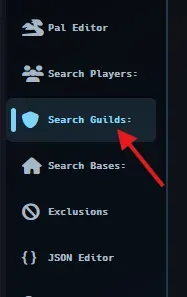
After selecting the player, click on Search Guilds
Step 6: Choose the Guild to Keep
In the guild list, identify the target guild: in our example, we would like to recover rights over Sunflower.
Right-click on this guild.
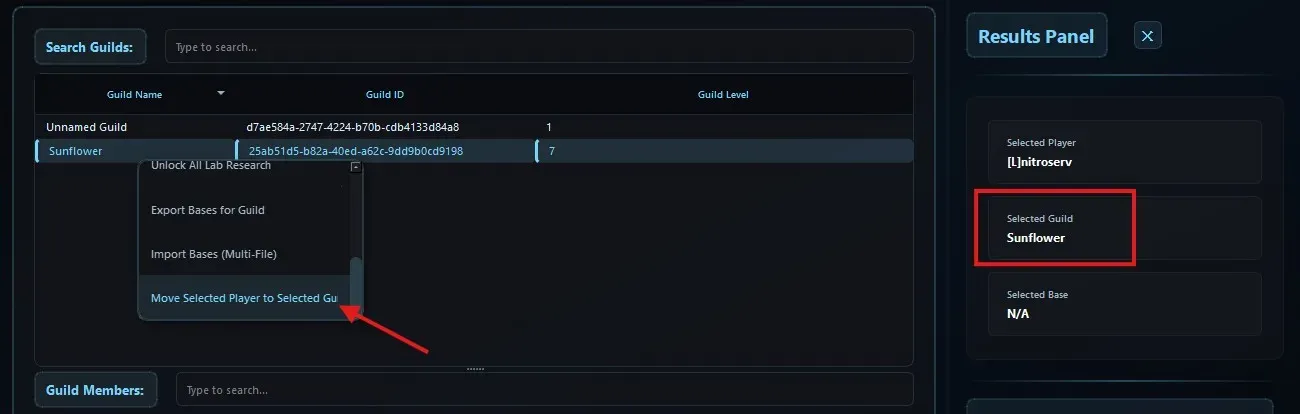
In the list of actions, scroll all the way down and select Move Selected Player to Selected Guild
This action links the selected player to the chosen guild.
Step 5: Repeat for Other Affected Players
If multiple players have lost access to the base, repeat the operation for each of them:
- go back to
Search Players; - select the player;
- go back to
Search Guilds; - right-click on the correct guild;
- choose
Move Selected Player to Selected Guild.
Take your time. It's better to properly link three players than to turn the guild into a mess of permissions.
Step 7: Reassign a Valid Guild Master
Once the players are linked to the correct guild, set a valid Guild Master.
The new Guild Master must be an existing and active character, for example the new character recreated by the former leader.
If you want to avoid getting blocked again, you can also set one or more trusted players as Sub Master, to have a safety net for base management.
Step 8: Verify No Ghost Leader Remains
Before saving, verify that the guild does not still contain an old inconsistent entry linked to the deleted leader.
The important point: there must be only one valid Guild Master remaining.
If an old orphaned reference remains present, permissions may seem to work at first, then break again later.
If you want to delete it:
Head to our guide "delete a player from a Palworld save.
Step 9: Save the Changes
Once the players are linked and the Guild Master is fixed, save the save from PST, either via Menu → Save Changes or directly from the floppy disk at the top.
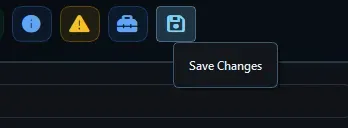
PST then writes the changes to the save.
Once again: keep your original folder aside, never modifying it. If something goes wrong, it's the one you'll put back on the server.
Step 10: Send Level.sav Back to the Server
When the modification is done:
- Return to Filezilla
- Right-click on the local folder we just worked on
- Click on "Upload"

You will then end up with two folders: WorldName_original, which we didn't touch, and WorldName which is all nice and clean, and which the server will take into account from now on.
Step 11: Restart and Verify
Once the files are sent back:
- restart your server from the nitroserv Manager;
- log in to the game;
- verify that:
- the new Guild Master is properly recognized;
- members are in the correct guild;
- chests are accessible;
- the Palbox works;
- the base can be managed properly;
- permissions remain correct after reconnection;
- the fix is only validated when everything actually works in-game.
Even if everything is good, you can keep your original copy for a while, just in case.
Good to Know
Guild fixes made in Level.sav generally hold over time. If the problem returns after a few days or after a restart, suspect an old entry of the deleted leader still present in the guild.
In this case, you will need to reopen Level.sav with PST and verify that no orphaned reference or ghost Guild Master remains.
Alternative: Restore a Previous Save
If you don't want to modify Level.sav, or if the repair fails, the other solution is to restore a save from before the guild master was deleted. This method restores the guild, its leader, and permissions to their original state. However, it restores everyone to the backup state: progression, constructions, chests, characters, everything returns to that moment.
Common Issues
The Player is in the Guild, but Chests Remain Locked
Verify that the guild has a valid Guild Master. Also check that there is no old ghost leader or orphaned reference remaining in the guild.
The Recreated Player is Not Guild Master
That's normal: Palworld does not automatically transfer the Guild Master role to a new character. You must reassign it manually in Level.sav. Changes are not taken into account after restart
Verify that the server was properly stopped during upload, that you replaced the correct Level.sav, that the file was properly sent to the correct world folder, and that the server did not rewrite an old save over it.
__
Need Help?
If you can't find your save, if your server doesn't restart properly after the modification, or if you deleted the wrong character, we're available on our Discord or via our Twitter account!
You can also contact us directly via ticket from your manager.