


 Palworld
Can't find your Palworld server?
Depending on whether you play on PC, Xbox or PS5, the method to join your server is not exactly the same.
On PC, you can connect directly with its IP address. On console, you must make your server public, then search for the name you gave it in the list of community servers.
Quick answer
- On PC: use the IP:PORT address displayed directly in your nitroserv manager.
(1) - On Xbox or PS5: make your server public, enable your platform in crossplay settings, then search for its exact name in community servers.
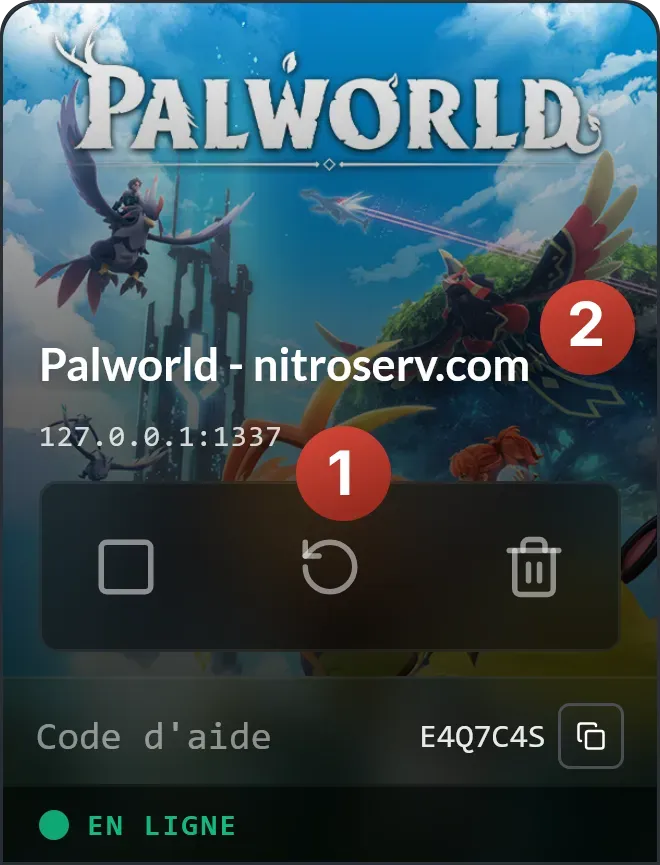
- Your server name is displayed in the top left of the manager, just above its IP address. You can replace it with whatever you want.
(2)
Find or change your server name
Your server's current name appears in its banner, in the top left of the nitroserv Manager.
It is located just above its IP address and port.
To change it:
- click the pencil icon to the right of the current name;
- enter the name you want to give your server;
- confirm with the green checkmark.
Preferably choose a fairly unique name to avoid spending more time finding Palworld with friends among fifty servers than actually playing the game.
This exact name is what console players will need to search for in the community servers list.
Private connection: join your Palworld server on PC with IP
If you play on PC, the simplest method is often direct IP connection.
In your nitroserv manager:
It appears directly under the server name, in the form: IP:PORT
For example:
127.0.0.1:1337
In Palworld:
- open the multiplayer menu;
- access the server list;
- at the bottom of the screen, enter your server's IP:PORT address at the bottom of the server list

Warning: make sure to check the box on the left if your server has a password, or you won't be able to connect!
- launch the connection
You don't need to find your server in the public list to use this method.
Public connection: join your server via the community list
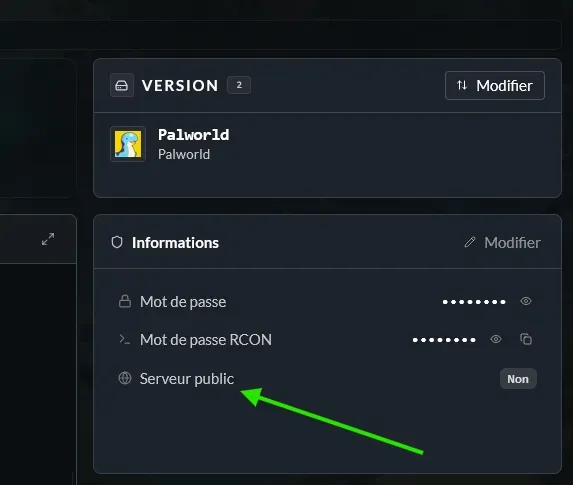
If you want your server to appear in the Palworld servers list, it must be configured as public.
This is mandatory for Xbox and PS5 players: on console, direct connection with an IP address is not available.
Before searching for it:
- make your server public from the nitroserv Manager;
- open the Configuration tab;
- verify that
XboxorPS5is enabled in Crossplay Platforms; - save the changes;
- restart your server;
- search for its exact name in community servers.
Your server must remain public to continue appearing in this list.
What about PC with the public list?
You can also join your PC server from community servers.
To do this:
- make it public;
- restart it;
- open community servers in Palworld;
- search for the name you defined in the nitroserv manager.
Direct IP connection remains faster on PC (and saves you from fishing through the server list).
Enable crossplay on your Palworld server
In the Configuration tab of your Manager, you can choose which platforms are allowed to join your server.
Depending on available options, you can enable:
- Steam;
- Xbox / Microsoft Store;
- PS5;
- Mac.
If a player can't find the server, verify that their platform is enabled.
At least one platform must remain selected.
Add a password to the server
To protect your server, we automatically generate a random password at creation.
If you want to change it, go to the Dashboard tab. In the Information section, click Edit then set the Password you want, as long as it's more than 5 characters.
Don't confuse it with the admin password:
Passwordprotects access to the server;Admin passwordgrants admin rights once connected.
It's the "normal" password that players will need to enter to join your server!
My server still doesn't appear
Verify that:
- the server is Online;
- it is configured as a public server if you're using search;
- the correct name is being searched;
- the name was properly validated in the manager;
- your platform is enabled in crossplay settings;
- the server was restarted after changes;
- its startup is complete in the console.
After a name change or restart, appearing in the list may also take a few moments.
__
Need help?
If your server doesn't appear in the list or you can't join it from your platform, we're available on our Discord or via our Twitter account!
You can also contact us directly via ticket from your manager.
IP:PORT`.