

 Palworld
Palworld does not offer a built-in tool to cleanly remove a player or character from a save.
To do this, you can use Palworld Save Tools, often abbreviated PST. It's a community tool that allows you to open a Palworld save, view the players present in the world, and then delete a character from the interface!
Quick Answer
The simplest method is to:
- stop your server;
- retrieve the complete save folder with FileZilla;
- rename the world folder on the server to
<WORLD_ID>_original; - modify the local copy with PST;
- send back the complete modified folder with the original name;
- restart and verify in-game.
Warning: PST modifies save files directly. Never work on your only copy.
Now for the detailed tutorial:
Step 1: Retrieve and protect your save
Before any modifications, stop your Palworld server from the nitroserv Manager.
Then, connect to your server via SFTP with FileZilla and navigate to the saves folder.
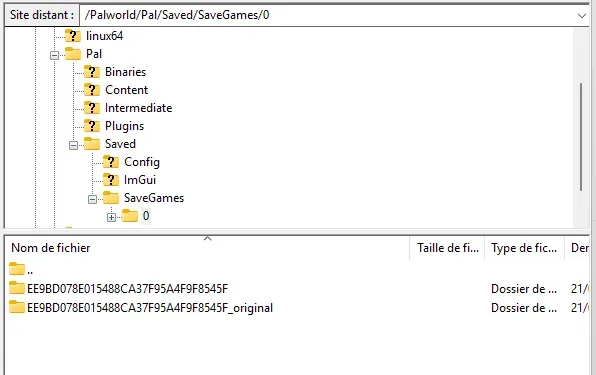
On your nitroserv server, the world folder is located here: /Palworld/Pal/Saved/SaveGames/0/
Inside, you will find your world folder, with a long identifier specific to your server.
It looks like this: /Palworld/Pal/Saved/SaveGames/0/<WORLD_ID>/
Download this complete folder to your computer by right-clicking, then clicking Download.
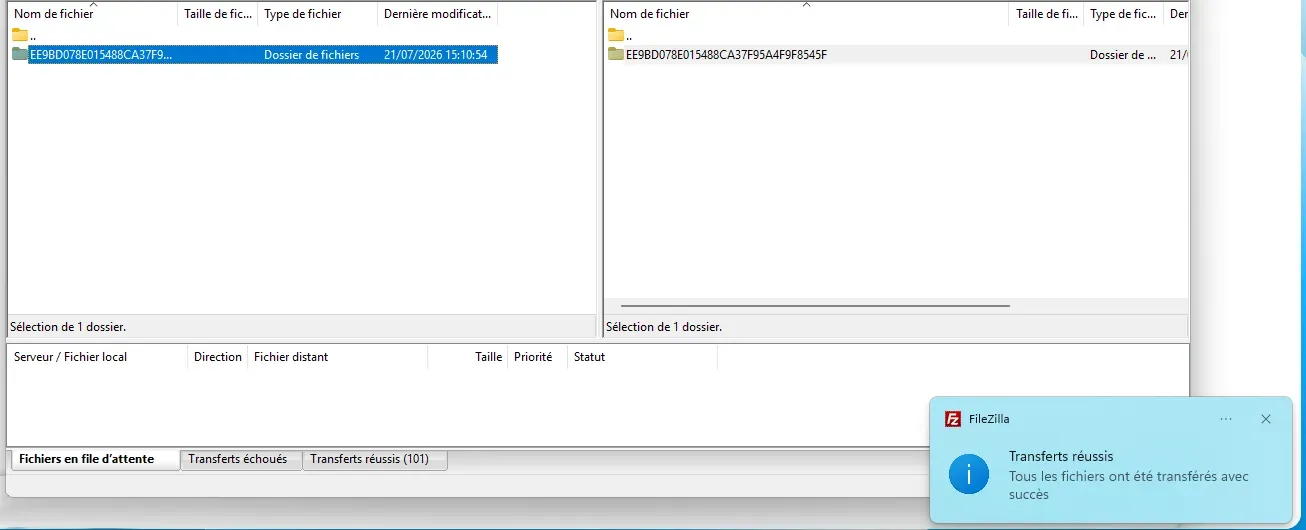
Once the folder is retrieved, rename the folder present on the server to keep it aside, for example: <WORLD_ID>_original

Do not delete this original folder until you have verified that everything works after the modifications. You can even leave it afterwards, it won't impact your server or your game.
This method avoids partial replacements: if PST deletes a player file locally, but the old file still remains on the server, Palworld may continue to take it into account. By renaming the original folder and then sending back a complete modified folder, you start fresh.
The <WORLD_ID> folder corresponds to your world identifier. It contains in particular:
Level.sav
LevelMeta.sav
Players/
Leave Filezilla open: we'll come back to it to re-import your save.
Step 2: Download Palworld Save Tools
You can get Palworld Save Tools from its official GitHub repository or from Nexus Mods.
The GitHub repository is here:
https://github.com/deafdudecomputers/PalworldSaveTools/releases
Choose the version suitable for your system:
- Windows:
.7zfile; - Linux: Linux binary;
- macOS:
.dmgfile.
On Windows, if the tool displays an error related to VCRUNTIME140.dll, install the Microsoft Visual C++ Redistributable.
Step 3: Open the save in PST
Launch Palworld Save Tools, then load your save.
In the save folder you retrieved earlier, select the file:
Level.sav
You can usually load it:
- via the Load Save menu;
- or by dragging and dropping
Level.savdirectly into the PST window.
Step 4: Find the player to delete
Once the save is loaded, open the player search tab, usually called Search Players or Players depending on the tool version.
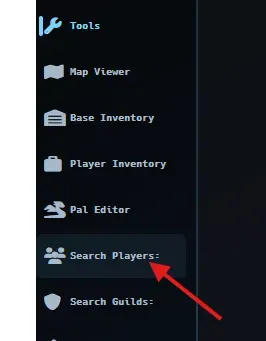
The list displays the players present in the save, with information such as:
- name;
- level;
- UID;
- guild;
- number of Pals;
- last login.
Take time to properly identify the character to delete, at the risk of discovering a new definition of the word "regret".
If you only have a few players on the server, delete them one by one rather than using automatic deletion. It's thirty seconds slower, but much safer.
Step 5: Delete the character
Once the correct player is identified:
- right-click on their line;
- choose Delete Player;
- confirm the deletion if PST asks you to.
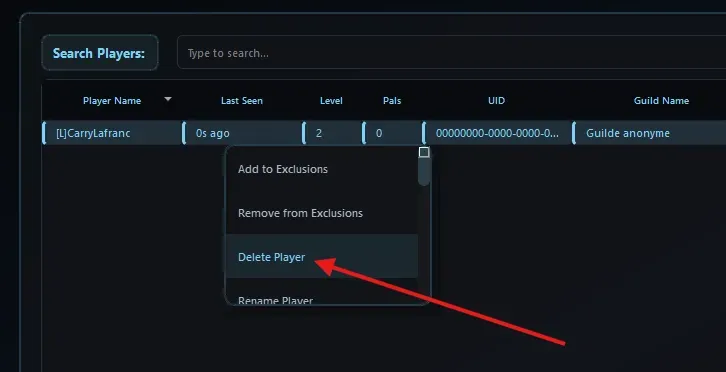
The character is then removed from the save: both from Level.sav and from the "Players" folder itself.
You don't need to delete or reset Steam players separately to delete a server player.
Step 6: Save the changes
After deletion, save the save from PST, either via Menu → Save Changes or directly from the floppy disk at the top.
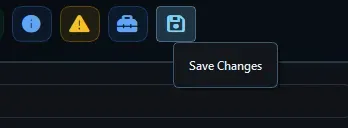
PST then writes the modifications to the save.
Once again: keep your original folder aside, never modifying it. If something goes wrong, it's the one you'll put back on the server.
Step 7: Send the modified save back to the server
When the modification is done:
- Go back to Filezilla
- Right-click on the local folder we just worked on
- Click "Upload"

You will then end up with two folders: WorldName_original, which we didn't touch, and WorldName which is all clean and nice, and which the server will take into account from now on.
Step 8: Restart and verify
Once the files are sent back:
- restart your server from the nitroserv Manager;
- log in to the game;
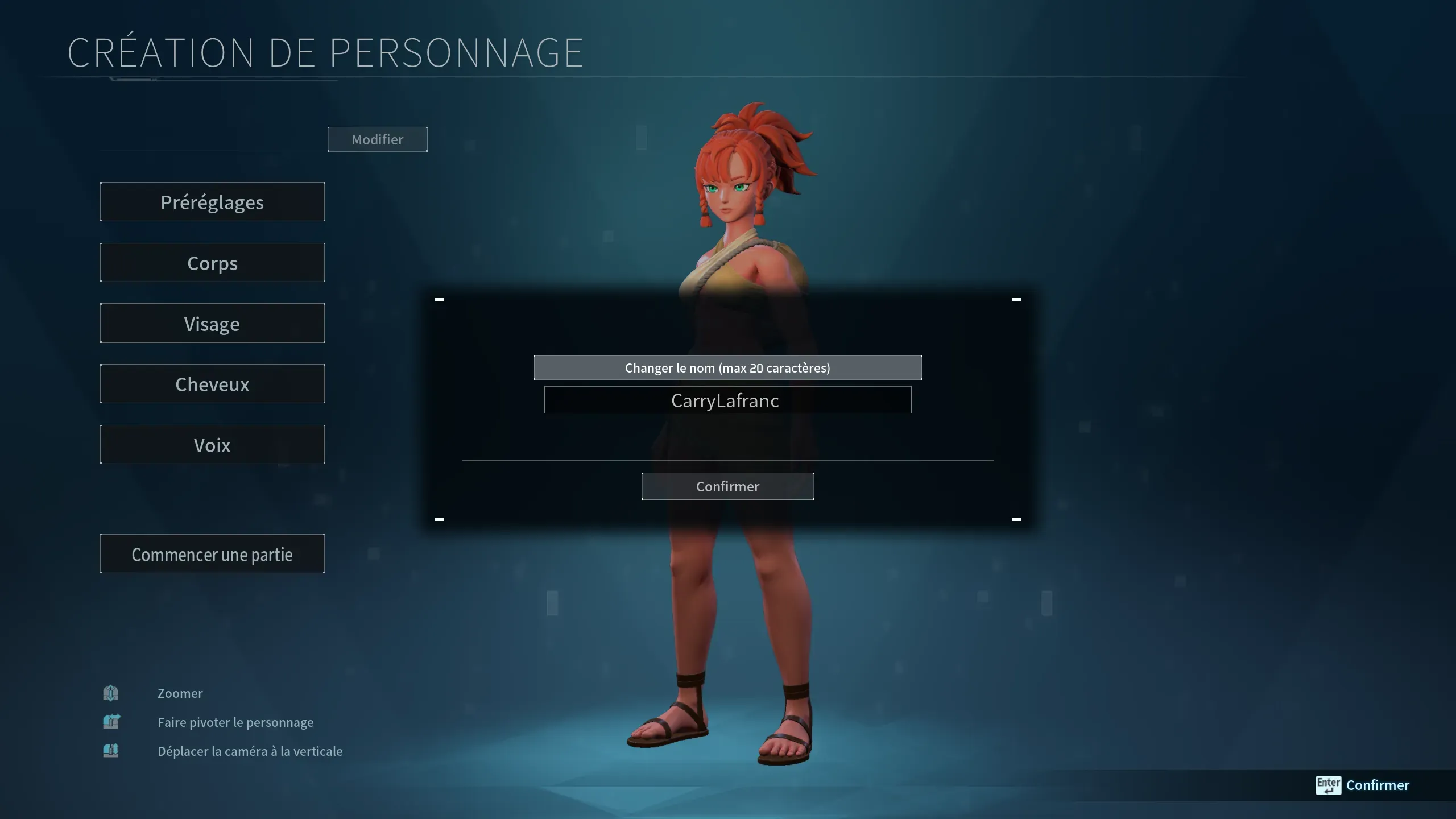
- verify that the deleted character no longer appears, or that the game asks you to create a new one if it was yours;
- verify that the world, bases, guilds and other players are still there.
Even if everything is good, you can keep your original copy for a while, just in case.
Common Issues
PST displays an error when loading the save
If PST displays an error like struct.error, your save may be in an old format.
In this case:
- launch the save once in Palworld or on your server;
- let the game update the save;
- stop the server or close the game properly;
- retrieve the save folder again;
- try loading
Level.savin PST again.
I deleted the wrong character
Don't continue modifying the save. Quit PST, then delete your local folder, and start over at step 1 to re-download your entire world!
That's exactly why we keep a complete and intact copy of the world before touching anything.
__
Need help?
If you can't find your save, if your server doesn't restart properly after the modification or if you deleted the wrong character, we're available on our Discord or via our Twitter account!
You can also contact us directly via ticket from your manager.